



I Stopped Fighting Screen Time and Taught My Kids Python (Real Code Guide 2026)
Introduction
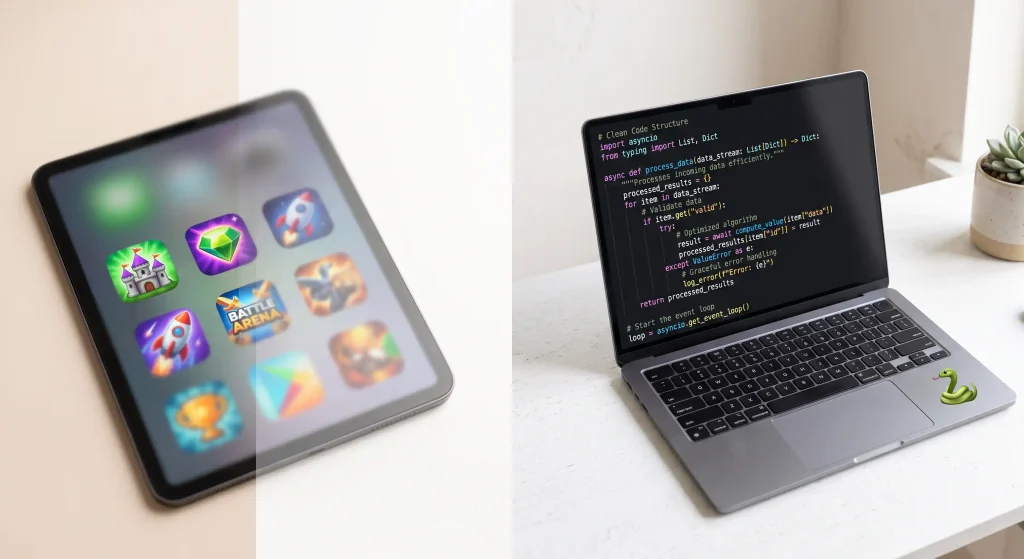
If your house looks anything like mine on a Saturday morning, the scene is all too familiar. Kids glued to iPads, zoning out to endless YouTube shorts or obsessing over Roblox, while you hover in the hallway wondering if their brains are turning to mush.
A couple of years ago, I got completely burned out from the constant “put the tablet away” arguments. The tantrums, the bargaining, the eye-rolls—it was exhausting.
That was when a friend of mine, who happens to be a software engineer, asked me a simple question over coffee:
“Why are you fighting the screen? Just change what they’re doing on it. Teach them how the games actually work.”
I didn’t want to hand my ten-year-old a dry, 500-page computer science textbook that felt like extra homework. But that single shift in perspective changed everything. We moved past the colorful block-building apps and jumped straight into real code.
We chose Python, and honestly, it completely flipped how my kids interact with technology.
Table of Contents
Why Scratch Only Took Us So Far
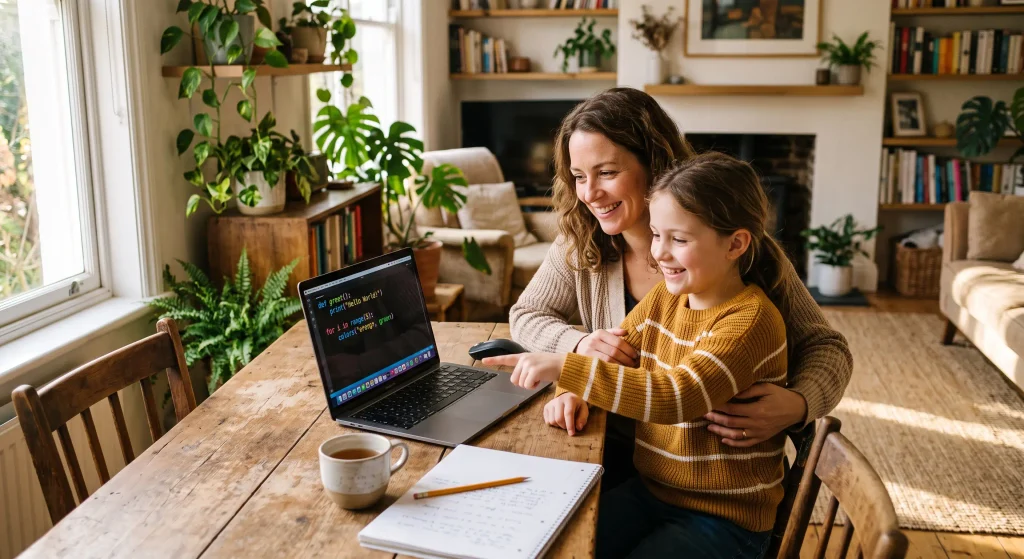
Like almost every parent trying to introduce coding, we started with Scratch (the block-based tool from MIT).
Don’t get me wrong: Scratch is brilliant for an eight-year-old. Snapping colorful puzzle pieces together to make a cartoon cat dance around the screen is great for getting the basic idea across.
[Scratch Blocks: Great for Day 1]
               │
               ▼  (Hits a wall around age 10)
[Real Code Curiosity: "How do actual games work?"]
               │
               ▼
[Python: Types like English, acts like real software]
But after a few months, my kid looked up from the laptop and asked: “Dad, do people actually build Minecraft or YouTube with these blocks?”
Well, no. They don’t.
Kids aren’t stupid. They know when they’re using a “toy” version of something. When they realize that real programmers type out lines of text, they want to feel like real hackers, not kids snapping digital Lego bricks together.
The problem? Most real coding languages look like alien math. Take Java or C++, for instance. Just to get the computer to say “Hi,” you have to type out something terrifying like public static void main(String[] args). If an adult gets a headache looking at that, imagine an eleven-year-old trying to figure out why a missing curly bracket broke their computer.
That is where Python completely steals the show.
The Secret Sauce: Python Actually Reads Like Plain English
The first time I opened a code editor with my kid, I didn’t give a lecture about algorithms or memory. I just typed:
print("Welcome to our secret headquarters!")
We hit enter, and the screen printed the words right back. His eyes went wide. No weird brackets. No complex setup. Just words he could already read and spell.
Look at how Python makes decisions:
money_saved = 45
game_price = 40

if money_saved >= game_price:
    print("Time to buy the game!")
else:
    print("Keep doing those chores...")
A fifth-grader can read that out loud and tell you exactly what it does before you even explain what an if statement is.
Python cuts out all the intimidating punctuation. It uses clean spacing and natural words. That means instead of crying over a missing semicolon on line 42, your kid spends their energy figuring out the logic of whatever puzzle they’re building.
The Day Everything Clicked: Our 20-Line “Secret Number” Game
You don’t need a degree in math to teach this. In fact, if you treat it like math class, kids will tune out in five minutes.
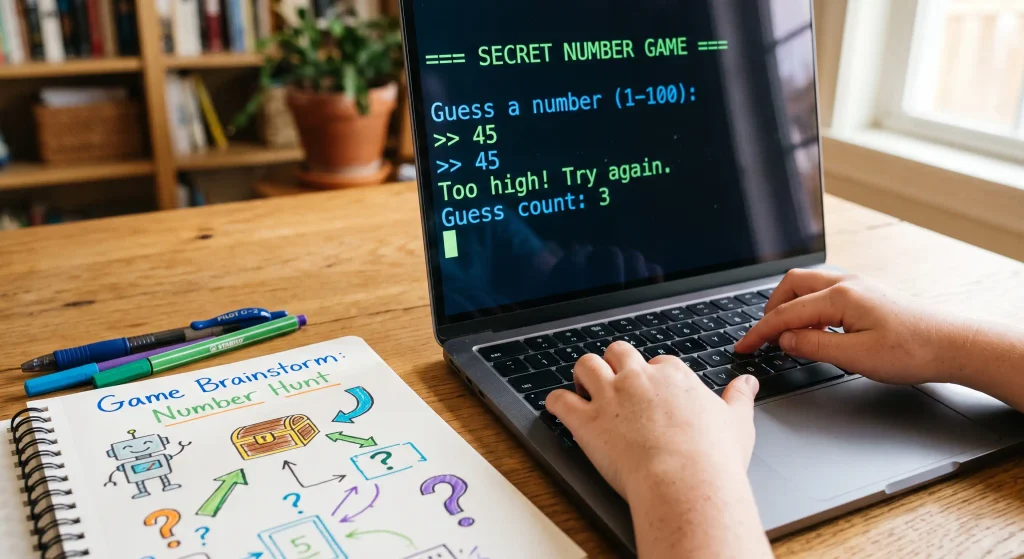
The real breakthrough in our house happened on a rainy Sunday when we built a ridiculously simple guessing game. It took maybe 15 minutes to write, but they played it with each other for nearly two hours:
import random

secret_number = random.randint(1, 50)
guesses_left = 5

print("I'm thinking of a number between 1 and 50. You get 5 tries!")

while guesses_left > 0:
    guess = int(input("What's your guess? "))
    guesses_left = guesses_left - 1

    if guess == secret_number:
        print("Whoa, you guessed it! You win!")
        break
    elif guess < secret_number:
        print(f"Too low! You have {guesses_left} tries left.")
    else:
        print(f"Too high! You have {guesses_left} tries left.")

if guesses_left == 0 and guess != secret_number:
    print(f"Game over! The number was {secret_number}.")
What Happened Next Was Fascinating
They didn’t just play it. They started hacking it immediately:
- “Can we change it from 1 to 1,000?” (Changed one number in the code.)
- “Can we make the computer say something mean when I lose?” (Edited the game-over print statement.)
- “Can I give myself 100 tries so I never lose?” (Cheating, but hey—they understood how variables work!)
That was the moment the lightbulb went off. They weren’t just staring at a game someone else built; they were in control of the rules.
4 Mistakes I Made (So You Don’t Have To)
Teaching your own kid anything—whether it’s riding a bike or writing code—can test your patience. Here is what I learned the hard way after a few bumpy starts:
1. Ditch the 45-Minute YouTube Tutorials
Kids get mesmerized by video tutorials, but 90% of the time they’re just blindly copying what the guy on screen is typing without absorbing a thing. The second the video stops, they have no idea what to do.
Hands-on, project-based reading works infinitely better. Having a step-by-step handbook where they can read at their own pace, look at a diagram, and type things out themselves makes the concepts stick.
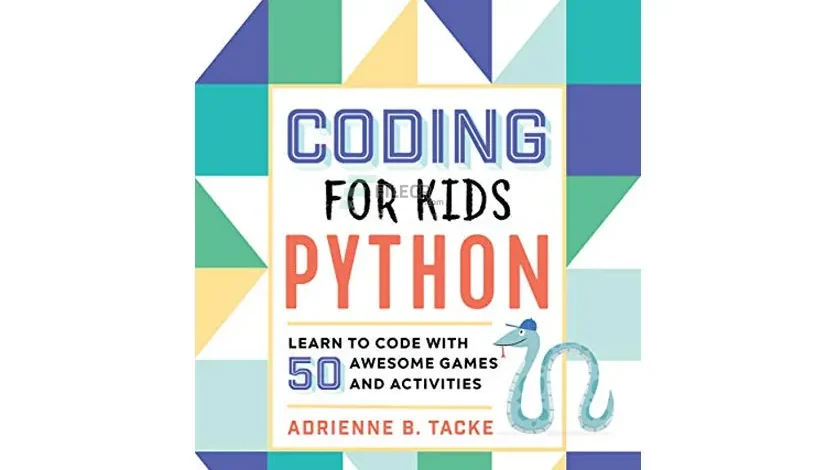
If you want a complete, beginner-friendly playbook that nails this approach with 50 fun visual challenges, check out Coding for Kids: Python Games & Activities. It lays everything out as bite-sized projects rather than academic chores.
2. Don’t Fix Their Errors For Them
When that dreaded red error message pops up, our parental instinct is to grab the keyboard and fix the typo. Don’t do it.
Treat errors like detective clues:
- “Look at what line the computer is complaining about.”
- “Did we close those quotes?”
- “Does that word look spelled right to you?”
When a kid tracks down their own bug and fixes it, the confidence boost is massive. That grit spills over into their schoolwork and everyday problem-solving too.
[Screen Shows Error Message]
              │
              ▼
   Take Your Hands Off the Keyboard
              │
              ▼
  Ask: "What line is it pointing at?"
              │
              ▼
   Let Them Find the Typo
              │
              ▼
[Instant Confidence Boost]
3. Use an Editor Made for Kids
Don’t try to set up massive professional developer software like Visual Studio Code right out of the gate. There are way too many buttons, menus, and pop-ups that just end up confusing them.
Download Thonny IDE. It’s completely free, clean, and built specifically for teaching beginners. It even shows variables updating in real-time on the side of the screen so kids can visually see what the computer is remembering.
4. Keep Sessions Short
Stop while they’re still having fun. Twenty to thirty minutes of high-energy problem solving is a hundred times better than forcing them to sit for two hours until someone ends up in tears.
Tools That Actually Work (And Won’t Make You Pull Your Hair Out)
Depending on what device your child uses, here is how to get set up without a headache:
| Setup Tool | Best For | Why It Works |
|---|---|---|
| Thonny | Mac & Windows Laptops | Clean, zero clutter, built specifically for learners. Free to download. |
| Replit | Chromebooks | Runs completely in your web browser. Nothing to install, saves automatically. |
| Raspberry Pi | Tinkering & Hardware | Plug it into a monitor and let them wire up lights and buzzers using real Python code. |
If your kid has a school Chromebook, stick with browser options like Replit. If they’re on a regular household laptop, install Thonny and keep it simple.
Where Does This Lead?
Parents often ask me: “Okay, but what are they actually going to DO with this?”
Once the basic building blocks click, the doors fly wide open:
- Custom Games: They can move into Pygame and start drawing pixel sprites, making platformers, and designing arcade games.
- Hardware & Gadgets: Hooking a computer up to small motors, sensors, and LED lights.
- Smart Automations: Writing small scripts that rename their homework folders or search through documents.
Even if my kids grow up to become doctors, artists, carpenters, or writers instead of software developers, learning to code gave them something invaluable. It taught them how to take a giant, terrifying problem, break it down into manageable little pieces, and calmly figure it out step by step.
In a world where algorithms dictate everything from the games they play to the videos they watch, I don’t want my kids to just be passive users who get pushed around by technology. I want them to understand how the gears turn behind the curtain.
Ready to turn passive screen time into a genuine superpower?
Grab your copy of Coding for Kids: Python – 50 Awesome Games & Activities today, fire up a simple code editor this weekend, and start building your first mini-game together!
Previous Post